Step-by-Step Instructions
-
1
Check ink or toner levels
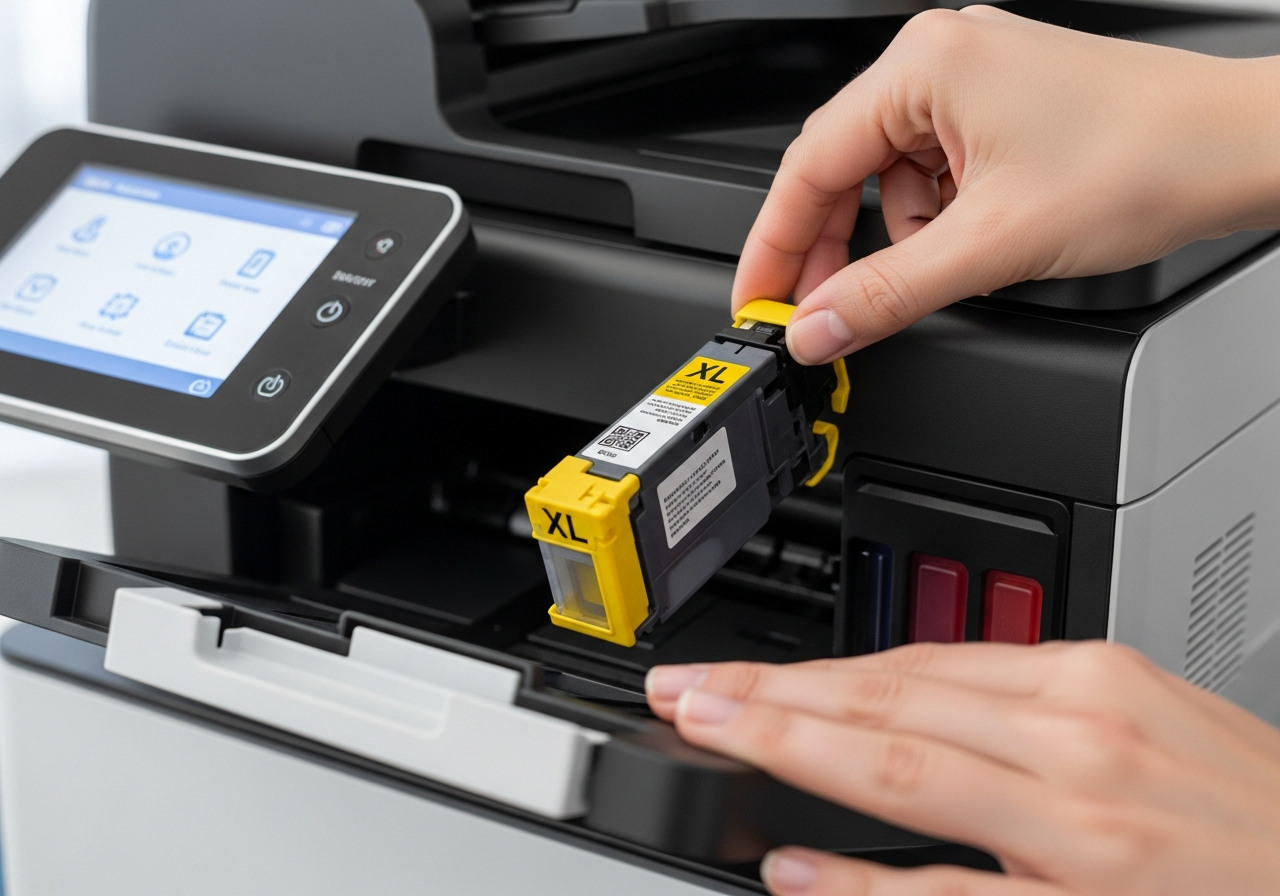
Open the printer utility software on your computer or check the control panel. Low ink is the most common cause of faded or streaky output. If any cartridge is below 10%, replace it before troubleshooting further.
-
2
Run a print quality diagnostic page
Most printers have a built-in option to print a test or diagnostic page. This shows patterns for each color and lets you quickly see which nozzles or areas are underperforming.
-
3
Run a printhead cleaning cycle
Access the maintenance menu in your printer software and run one or two cleaning cycles. This pushes ink through clogged nozzles. Do not run more than three in a row without printing a test page.
-
4
Align the printheads
After cleaning, run a printhead alignment from the maintenance menu. Misalignment causes blurry text and color fringing.
-
5
Check your paper and settings
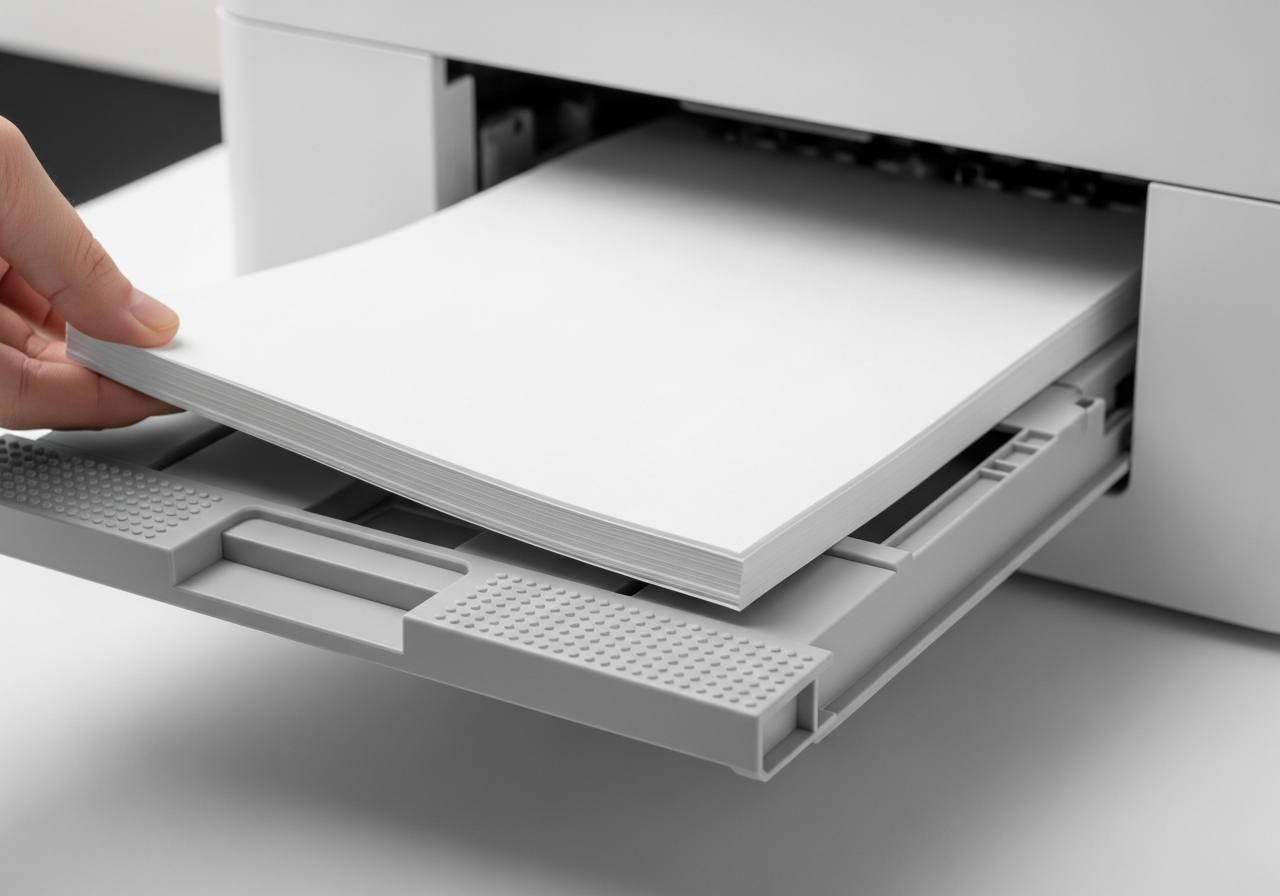
Make sure you are using paper that matches the type selected in your print dialog. Printing on the wrong paper type results in over-inking, blurring, or poor color reproduction.
-
6
Clean the rollers
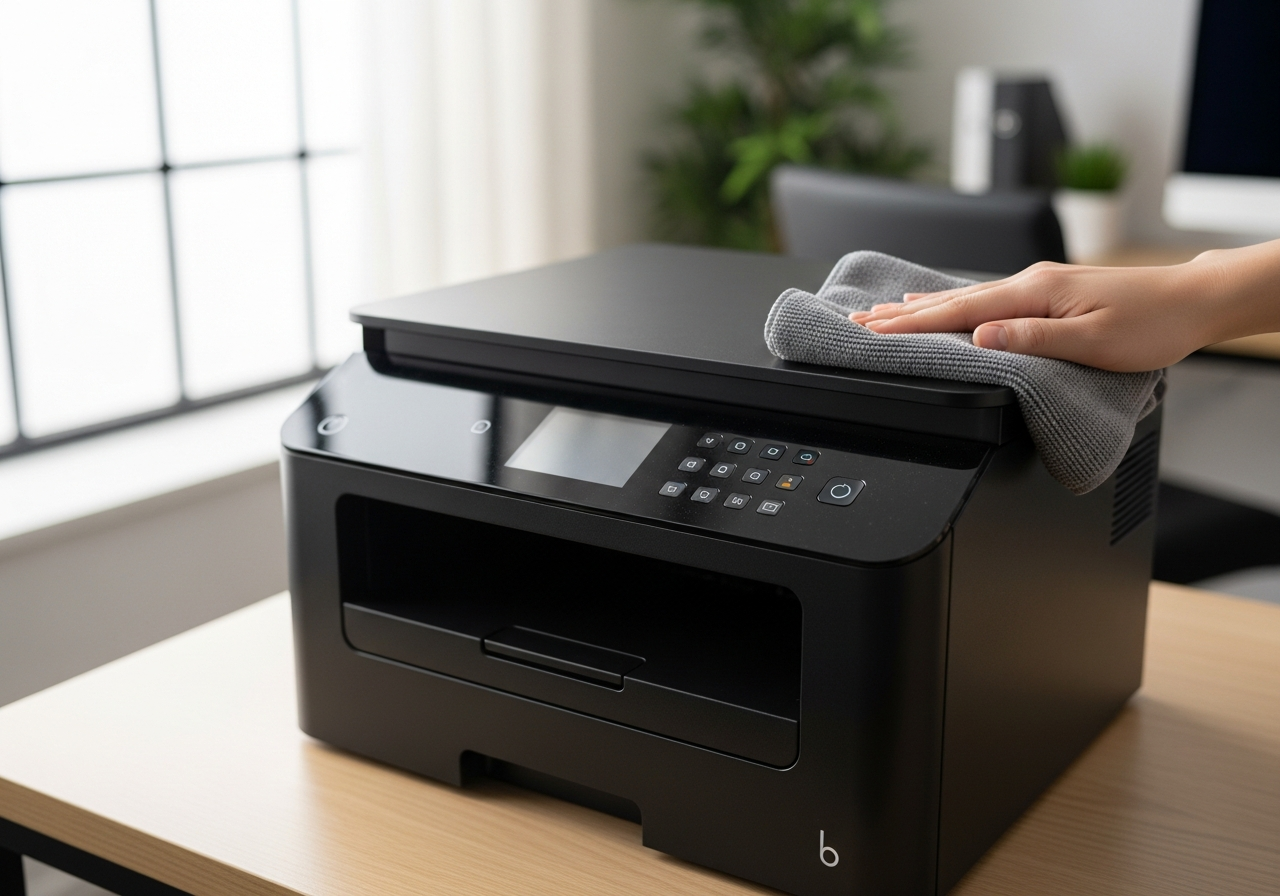
Dirty rollers can cause smearing and uneven ink application. Using a lint-free cloth lightly dampened with water, wipe each visible roller. Let everything dry completely before powering back on.
-
7
Check the document itself
If printing from an image or PDF, ensure the source file has sufficient resolution (at least 300 DPI for photos). Low-resolution images always look blurry regardless of printer condition.
-
8
Perform a factory reset (last resort)
If quality is still poor after all other steps, performing a factory reset can clear corrupted settings. Check your printer's manual for the reset procedure.
Helpful Tips
- Streaks in a single color usually point to a clogged nozzle in that color channel.
- Yellow streaks are the hardest to see on white paper — print on colored paper to check.
- Do not shake inkjet cartridges aggressively — it can introduce air bubbles.
- Leaving a printer unused for weeks can cause ink to dry; print a test page weekly.
- For laser printers, streaking often indicates the drum or toner cartridge needs replacing.