Step-by-Step Instructions
-
1
Identify your exact printer model
The model number is usually printed on a label on the front or bottom of the printer. Write this down exactly — even a small difference in the model number can mean downloading the wrong driver.
-
2
Visit the manufacturer's official website
Go directly to the printer manufacturer's website and navigate to their Downloads or Drivers & Software section. Always download drivers from the official source to avoid security risks.
-
3
Select your operating system
Choose your correct operating system — Windows 10, Windows 11, macOS Ventura, etc. — and the correct version. Downloading the wrong version will result in installation errors.
-
4
Download the driver package
Click to download the recommended full driver package rather than a basic or minimal driver, as the full package includes all features.
-
5
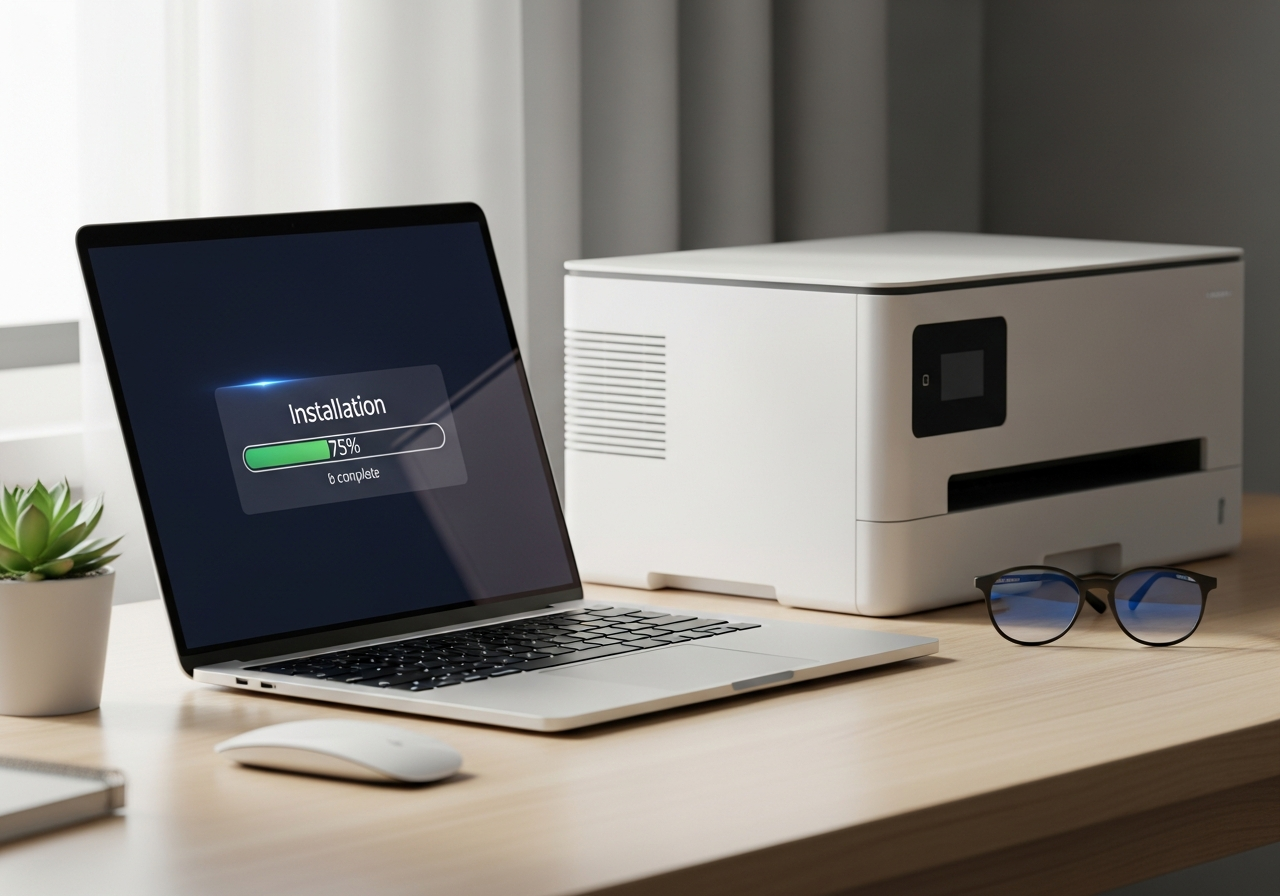
Run the installer
Open the downloaded file. On Windows, you may see a User Account Control prompt — click Yes to allow the installation. On Mac, open the .dmg file and follow the on-screen instructions.
-
6
Follow the setup wizard
The installer will guide you through the process. When prompted, connect your printer via USB or confirm your Wi-Fi network details. Do not disconnect the printer during installation.
-
7
Restart and test
Once installation is complete, restart your computer. Open a document and attempt a test print to confirm the new driver is working correctly.
-
8
Remove old drivers if needed
If issues persist, the old driver may be conflicting. On Windows, go to Settings > Devices > Printers & Scanners, remove the old printer entry, then reinstall.
Helpful Tips
- Enable automatic driver updates in your operating system settings.
- Create a system restore point on Windows before installing new drivers.
- If the installer fails, try running it in compatibility mode (Windows only).
- For network printers, make sure the printer and computer are on the same network during setup.
- Keep a note of your printer model number for quick future reference.