Step-by-Step Instructions
-
1
Check the obvious first
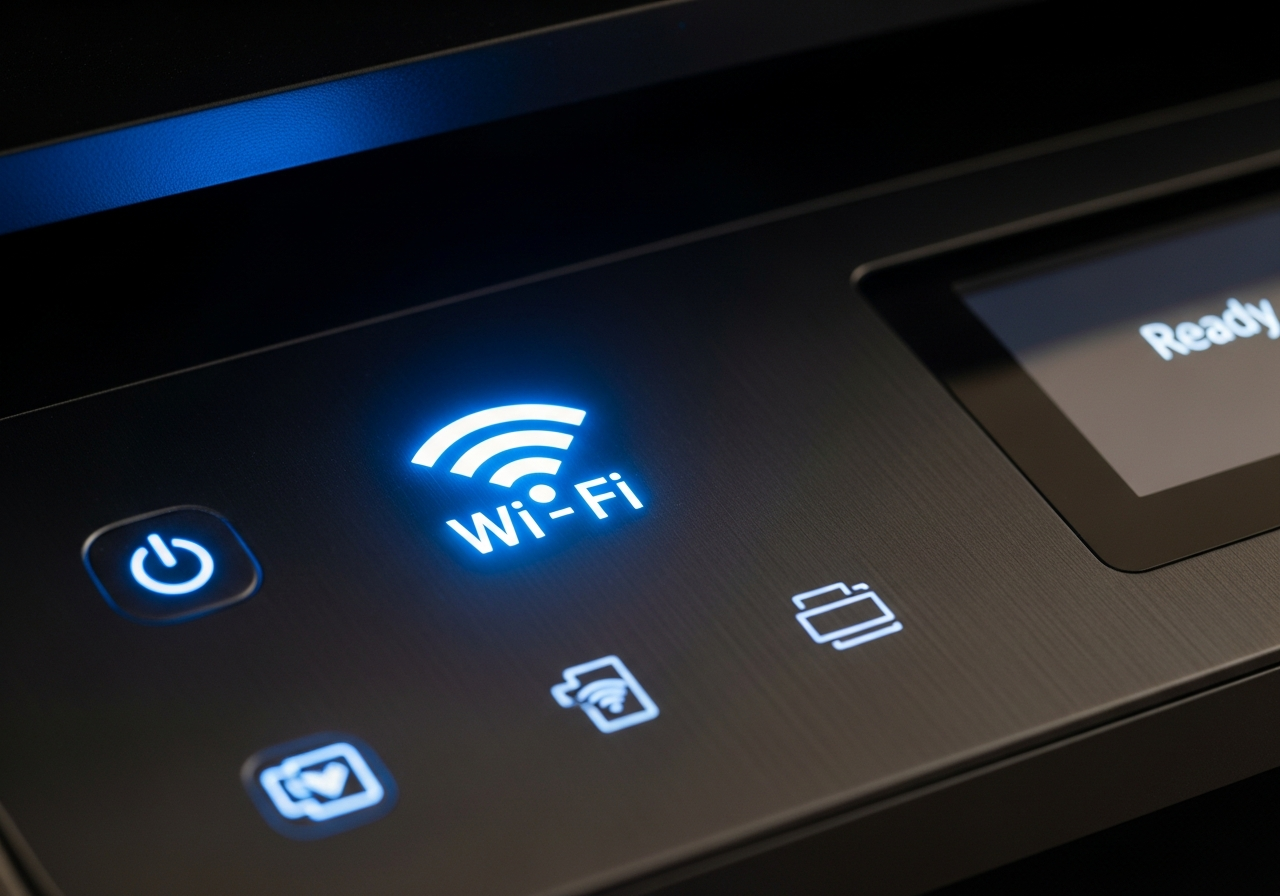
Confirm the printer is on, has paper, and shows no error lights or messages on its display. Check all cable connections if using a wired setup. For wireless printers, confirm the wireless indicator light is solid and not blinking.
-
2
Restart everything
Turn off the printer, then restart your router, then restart your computer. Once everything is back on, power the printer back on last. This clears temporary network glitches that cause most offline errors.
-
3
Set the printer as default (Windows)
Go to Settings > Bluetooth & devices > Printers & scanners. Click on your printer, then click Set as default. Also click Open print queue and cancel any stuck jobs.
-
4
Disable 'Use Printer Offline' mode (Windows)
Open the print queue window. Click the Printer menu at the top. If Use Printer Offline is checked, click it to uncheck it. This setting sometimes activates automatically when a connection is briefly lost.
-
5
Remove and re-add the printer (Mac)
On Mac, go to System Settings > Printers & Scanners. Select the printer and click the minus button to remove it. Then click the plus button to add it again.
-
6
Check the IP address
Print a network configuration page from the printer's menu. If the IP address starts with 169.254, the printer has not successfully obtained a network address — re-run the wireless setup.
-
7
Reinstall the driver
If none of the above steps work, uninstall the printer from your computer completely, then download and reinstall the latest driver from the manufacturer's website.
Helpful Tips
- A static IP address for your printer eliminates most recurring offline issues.
- On Windows, the Print Spooler service sometimes needs to be restarted via Services.
- Check if a firewall or VPN on your computer is blocking the printer's port.
- Some printers drop off the network when in deep sleep — disable sleep mode to test.
- If the printer works when connected via USB but not wirelessly, the issue is definitely network-related.