Step-by-Step Instructions
-
1
Check the basics
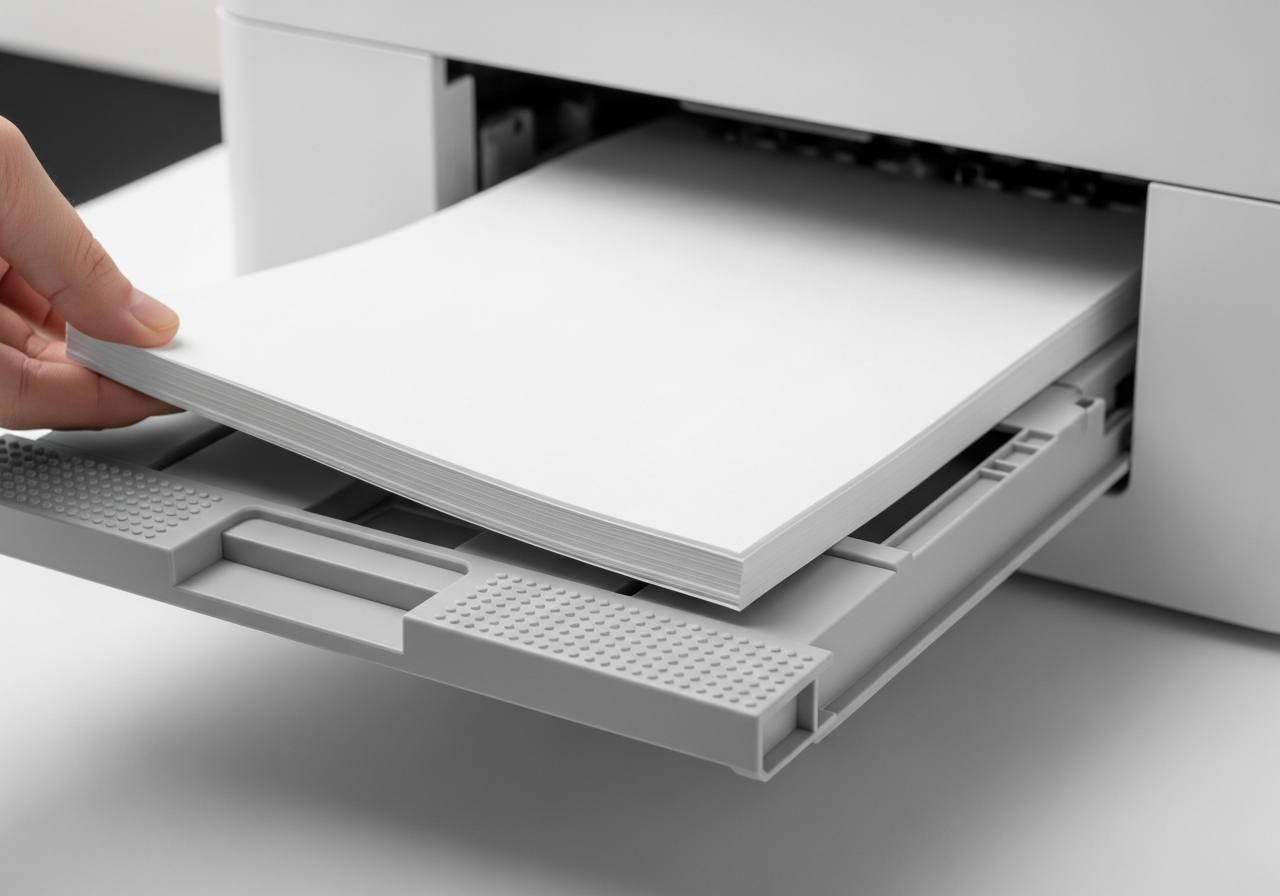
Confirm the printer has power, is switched on, has paper in the tray, and has ink or toner. Check all visible cable connections. A surprising number of problems are resolved at this step.
-
2
Read the error message or indicator lights
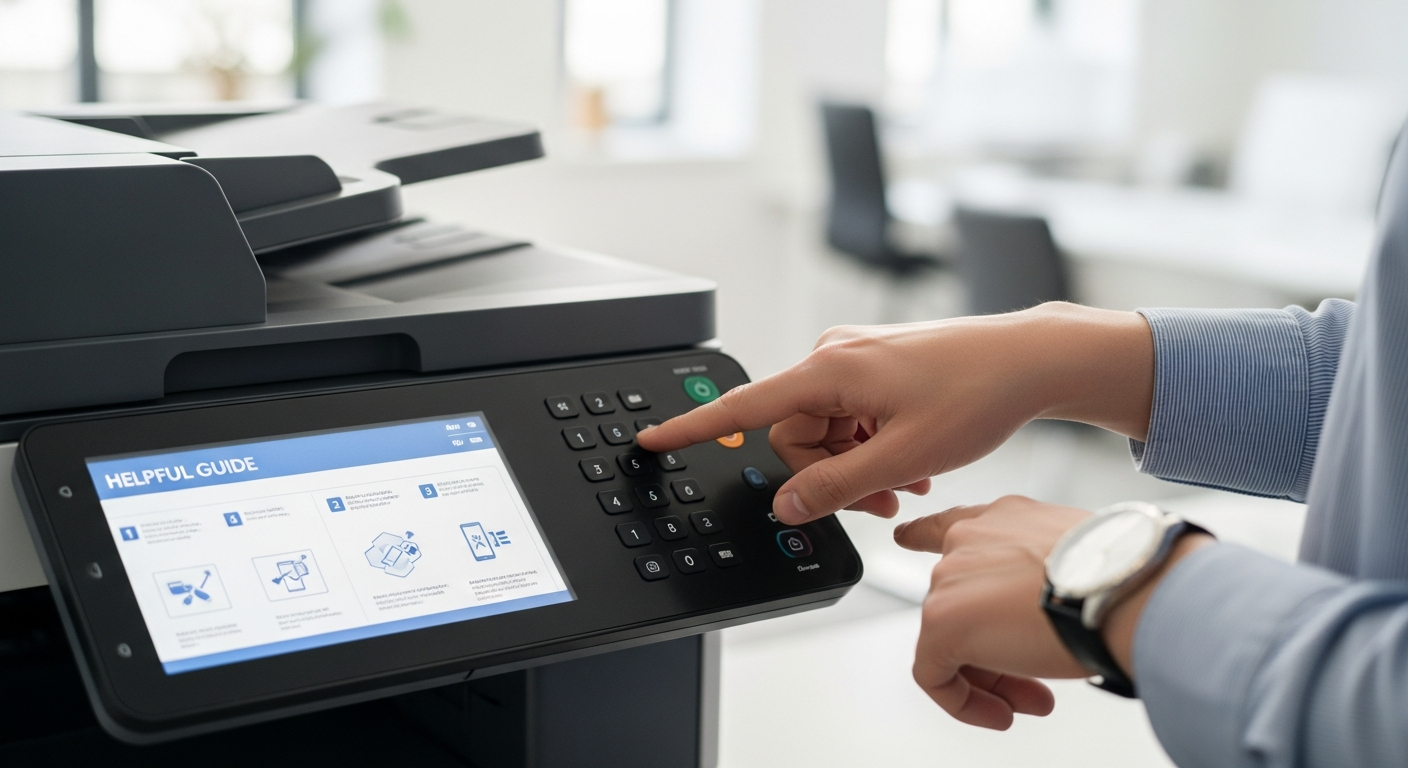
Most printers display an error code or flash a specific pattern of lights when something is wrong. Look up the code in your printer's manual or on the manufacturer's website.
-
3
Restart the printer and your computer
A full power cycle resolves a wide range of issues by clearing temporary errors and resetting connections. Turn off the printer, restart your computer, then power the printer back on.
-
4
Cancel all print jobs
A stuck or errored print job can block everything that comes after it. On Windows, go to Devices > Printers and open the print queue. Right-click any waiting jobs and choose Cancel. On Mac, click the printer icon in the dock and remove any stalled jobs.
-
5
Check the connection
For USB printers, try a different USB port or cable. For wireless printers, confirm the printer is on the same network as your computer and that the wireless light is solid.
-
6
Update or reinstall drivers
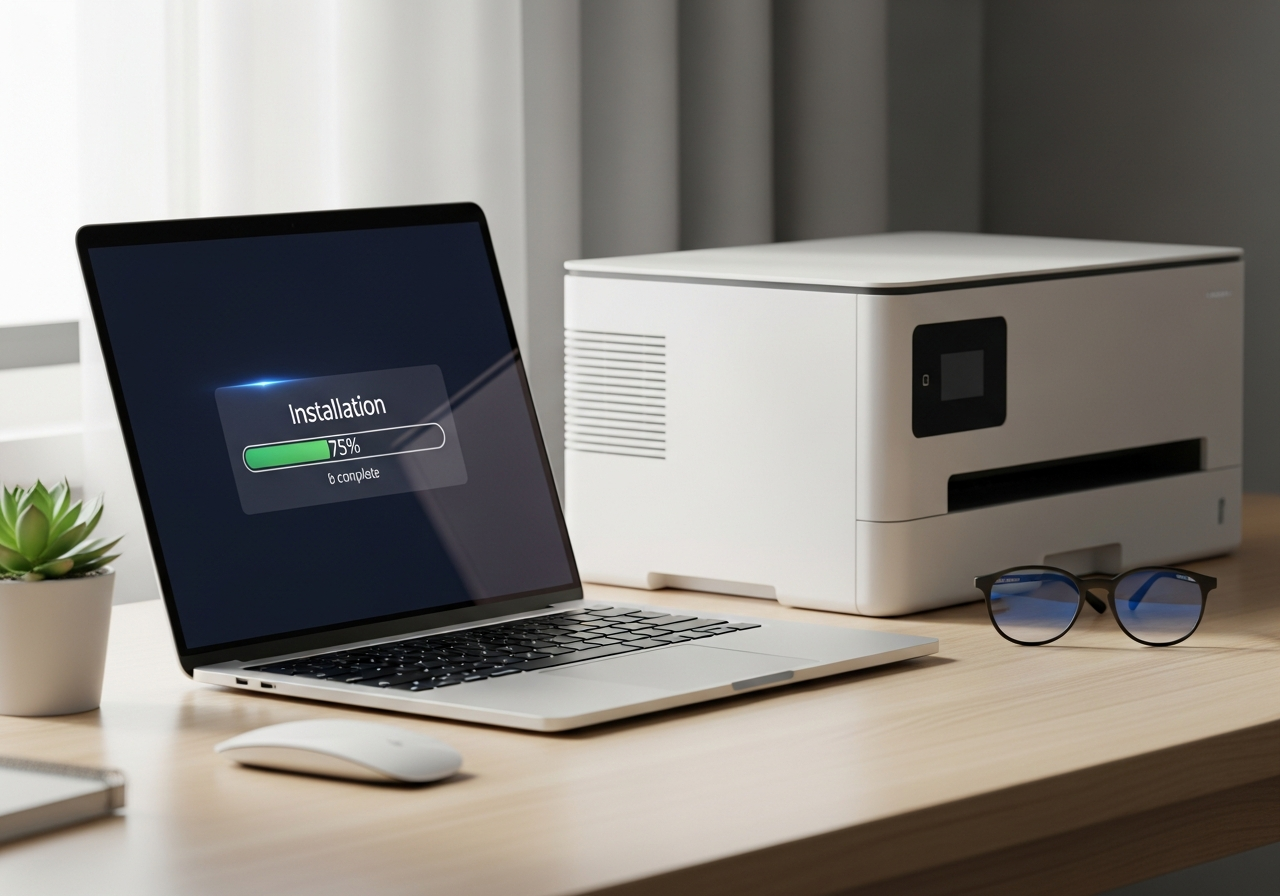
An outdated or corrupted driver is a leading cause of unexplained printing failures. Visit the manufacturer's website and download the latest driver for your model and operating system.
-
7
Check for paper jams
Open all access panels and look carefully for any paper or torn fragments. Even a small piece of paper can cause persistent errors.
Helpful Tips
- Keep a note of your printer model number and the version of your operating system for faster lookups.
- The manufacturer's official support pages almost always have the most accurate model-specific guidance.
- Document what you tried and the results — it helps avoid repeating steps and spots patterns.
- If a problem appears after a Windows or macOS update, the driver is the first thing to suspect.
- A factory reset on the printer is a useful last resort — it clears all custom settings and starts fresh.