Step-by-Step Instructions
-
1
Connect the printer to your Wi-Fi network
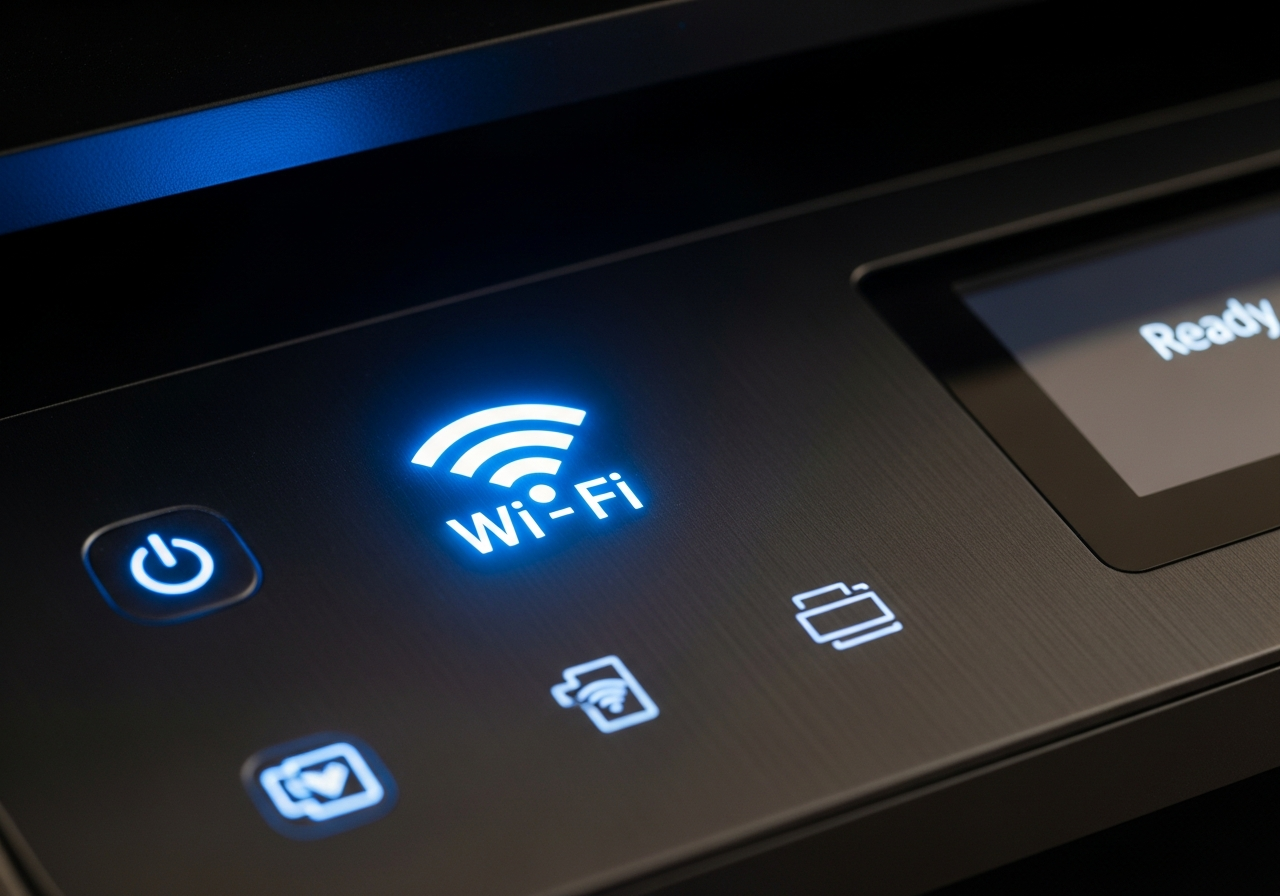
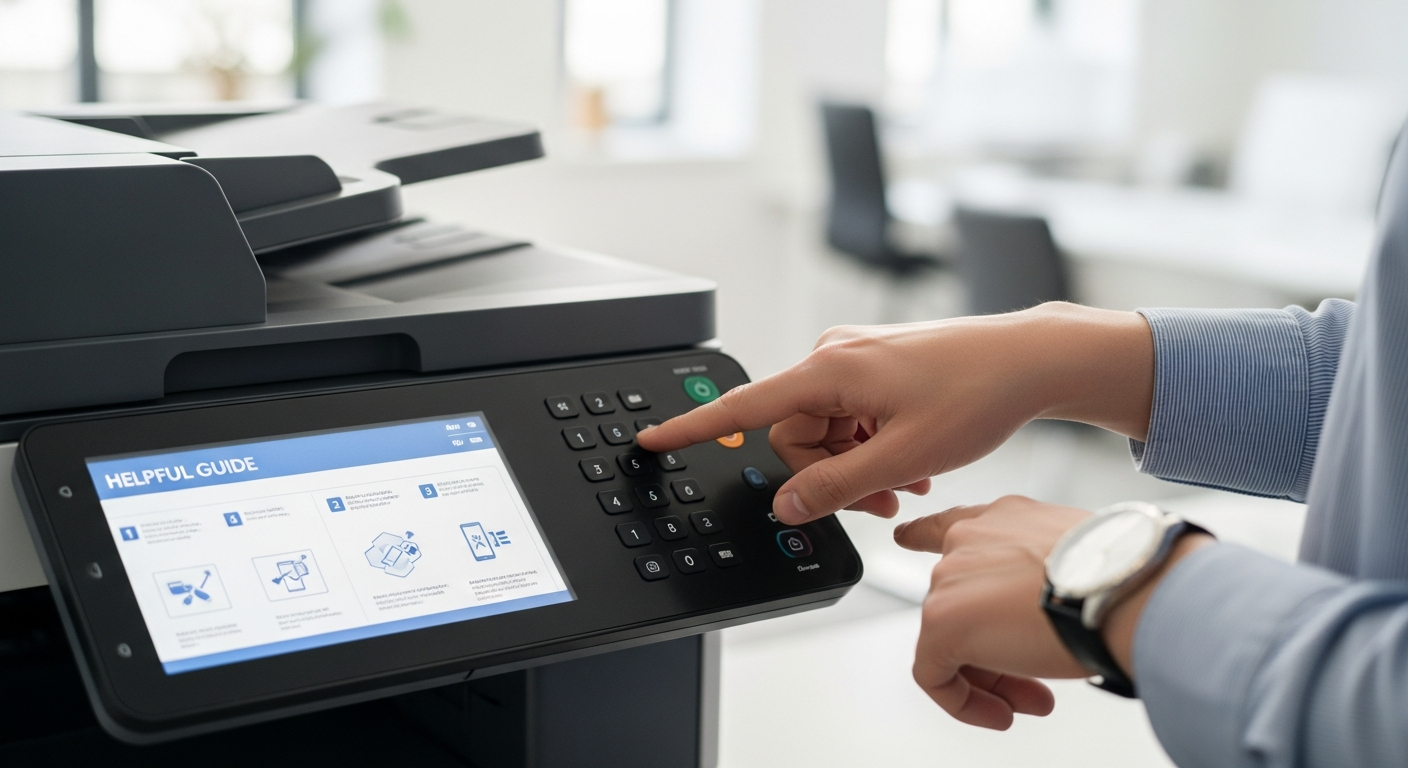
Use the printer's control panel to navigate to Wireless Settings > Wireless Setup Wizard. Select your network name and enter the password.
-
2
Print a network configuration page
Once connected, print a network page from the printer's settings menu. Note the IP address listed — you may need it later.
-
3
Add to a Windows computer
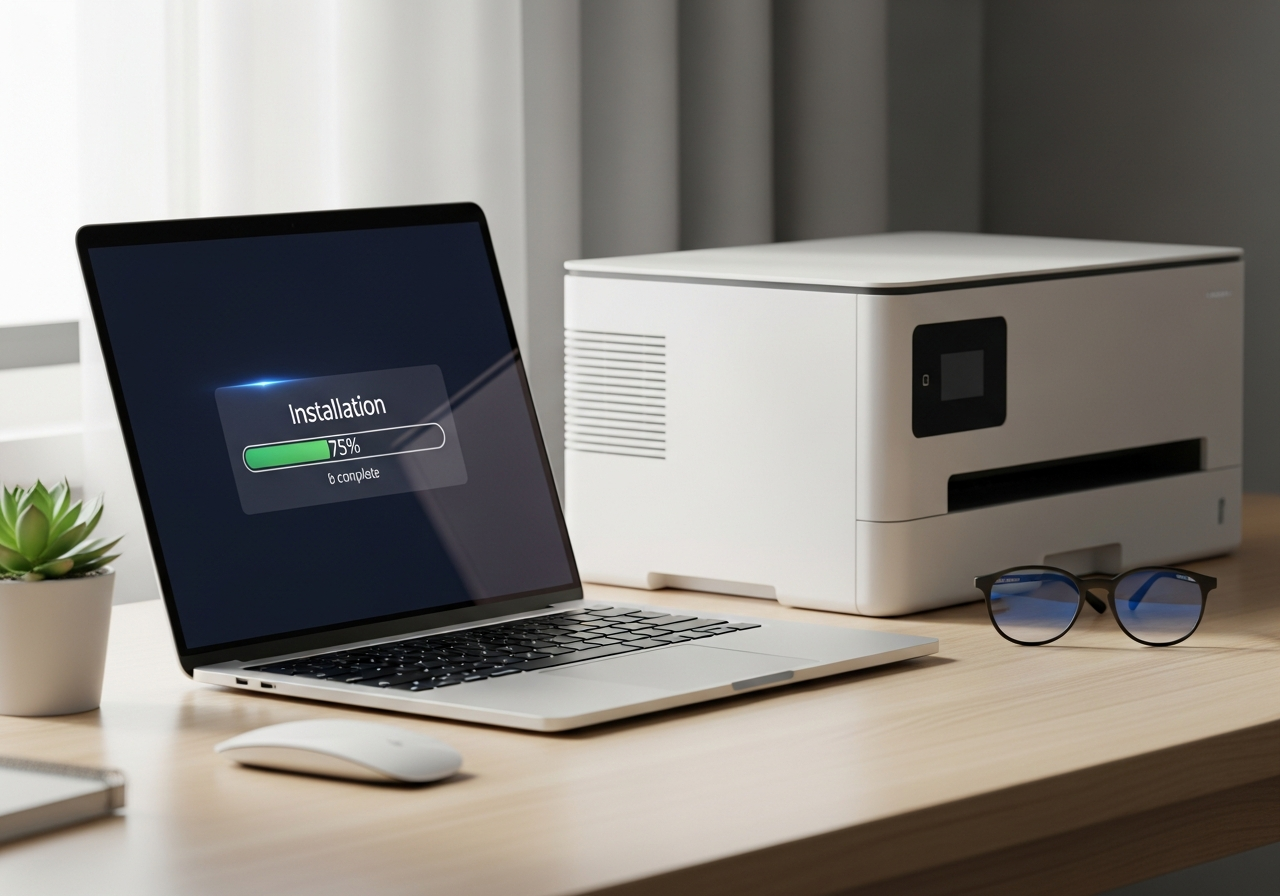
Go to Settings > Bluetooth & devices > Printers & scanners > Add a printer or scanner. Windows will find your printer on the network automatically. Click on it and select Add device.
-
4
Add to a Mac
Go to System Settings > Printers & Scanners. Click the + button and wait for your printer to appear in the list. Select it and click Add. macOS downloads the correct driver automatically for most models.
-
5
Print from an iPhone or iPad
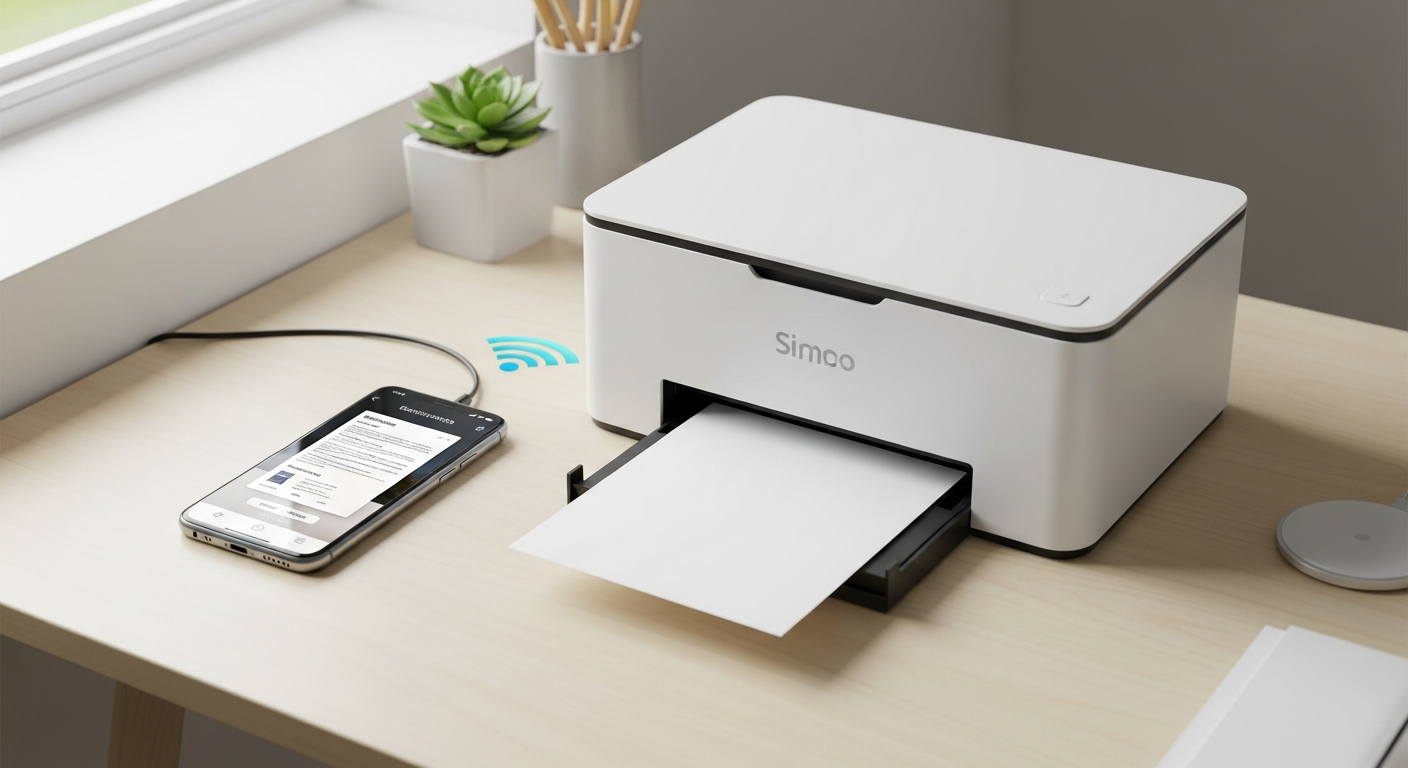
Most modern printers support AirPrint, which works automatically with no setup on iOS. Open any document or photo, tap Share, and choose Print. Select your printer from the list.
-
6
Print from an Android phone
On Android, go to Settings > Connected devices > Connection preferences > Printing. Enable the Default Print Service or install your printer manufacturer's app from the Play Store.
-
7
Test all devices
Send a small test print from each device you set up. Confirm each job completes successfully before considering the setup done.
Helpful Tips
- Place the printer within a good range of the router for a stable connection.
- A 2.4 GHz Wi-Fi band provides better range for printers than a 5 GHz band.
- If a device cannot find the printer, confirm both are on the same Wi-Fi network (not a guest network).
- Some mobile printing apps from printer manufacturers offer extra features like scanning.
- A wired ethernet connection is even more reliable than Wi-Fi if your printer supports it.